Project
Rules and Project Data
DAQS makes it possible to store Project-Specific Data. Your rule can then pull values from the project data instead of hardcoding them.
Result:
- One rule works for all projects
- DAQS compares the Revit model against the correct values for that specific project
Example
A standard rule checks model data against a known list of values. For example: Get all interior doors in this model and check if the Fire Rating is one of these values (0, 30, 60, 90, 120). This rule works for many projects.
But imagine a rule like: The Project Base Point must be X = 10 m, Y = 20 m, Z = 0 m. That may be correct for Project A, but Project B may use completely different coordinates. This means the rule will break, or you’d need duplicate versions of the same rule with different values — technically possible, but far from ideal.
Requirements
- Company data schema
- Permissions
- Excel template (optional)
Project permissions
You need the appropriate permissions to edit a project.
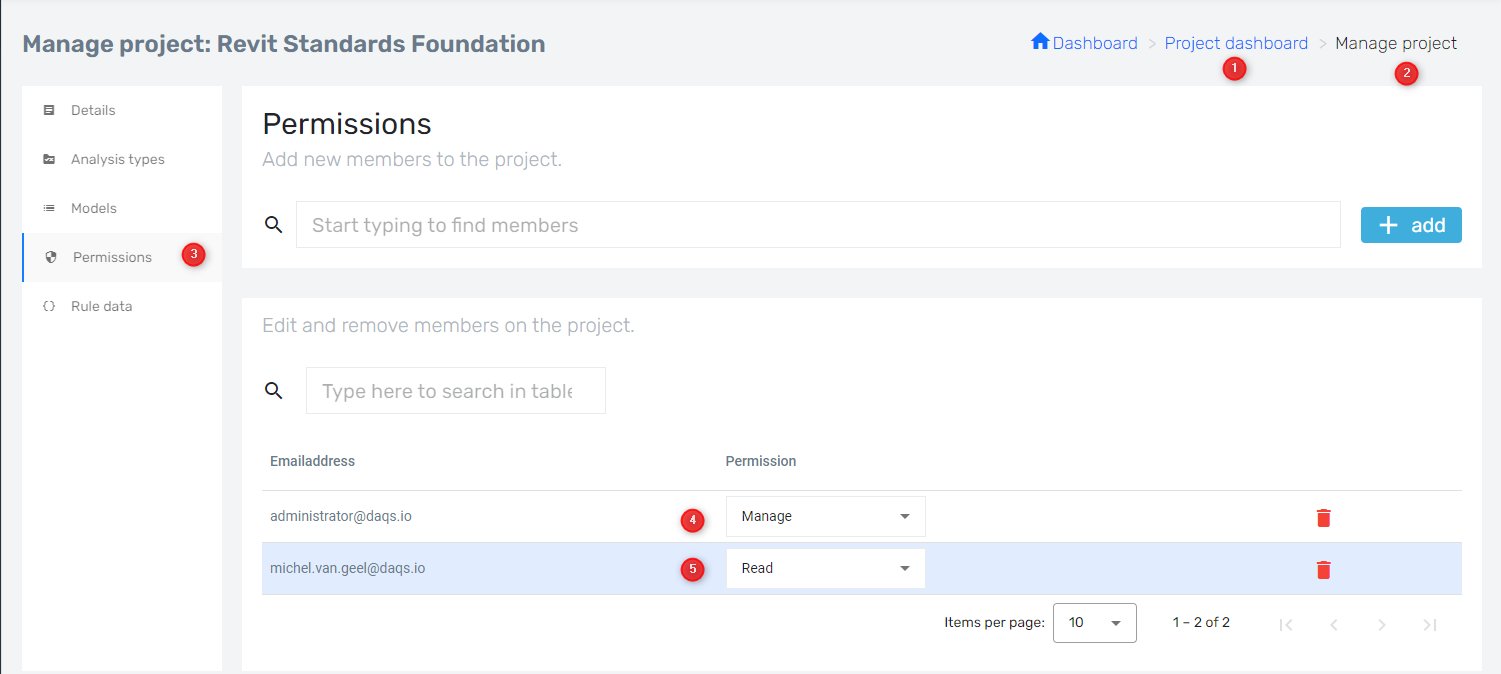
- Go to the project
- Open Manage Project
- Open Permissions
- Users with Manage permissions may add, edit, or delete project data
- Users with Read permissions cannot change project data
If you don’t see your own name but you see the project anyway, it’s because you are a Company Administrator.
Project Data
Project data must be formatted as JSON and follow the schema defined for your company. If you do not have a JSON file yet, follow these steps:
- Ask DAQS to give you the schema.
- Copy and paste the schema into an AI tool and ask it to create an Excel template, or ask DAQS to create one for you.
- Fill in the Excel template.
- Visit TableConvert.
- Paste your Excel data into TableConvert, provided you have permission to share it there.
- Select JSON as the output format.
- Click Copy to clipboard.
- Paste the JSON into the field marked 5 in the screenshot below. Use Ctrl+A to select the existing content, then Ctrl+V to replace it.
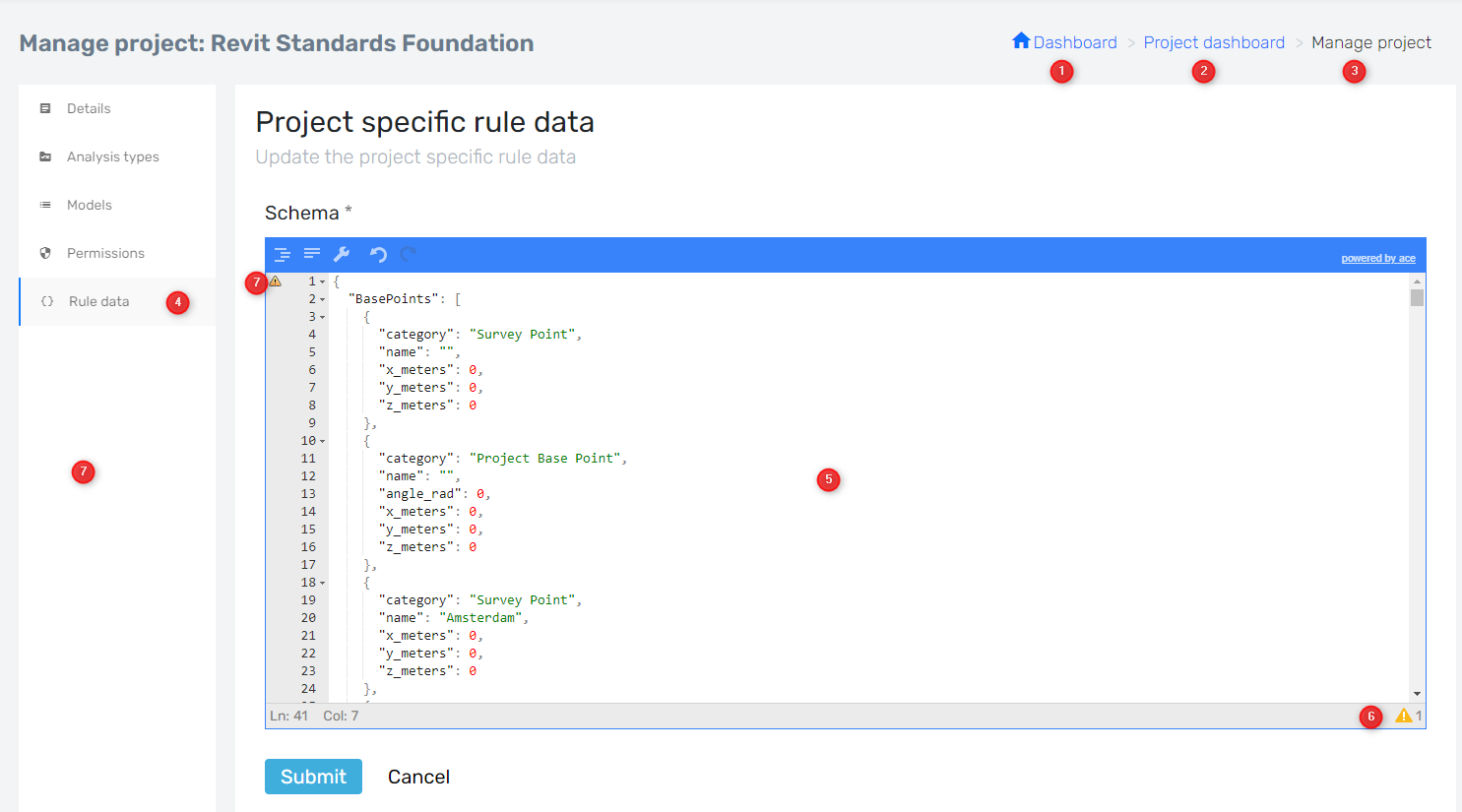
- Click Submit.
- Go to the dashboard
- Select your project.
- Open Manage Project.
- Go to Rule data.
- Paste or edit your project-specific JSON.
- If you see the red or yellow error icon⚠️, there are validation errors.
- Hover over the red or yellow icon for details.
Errors
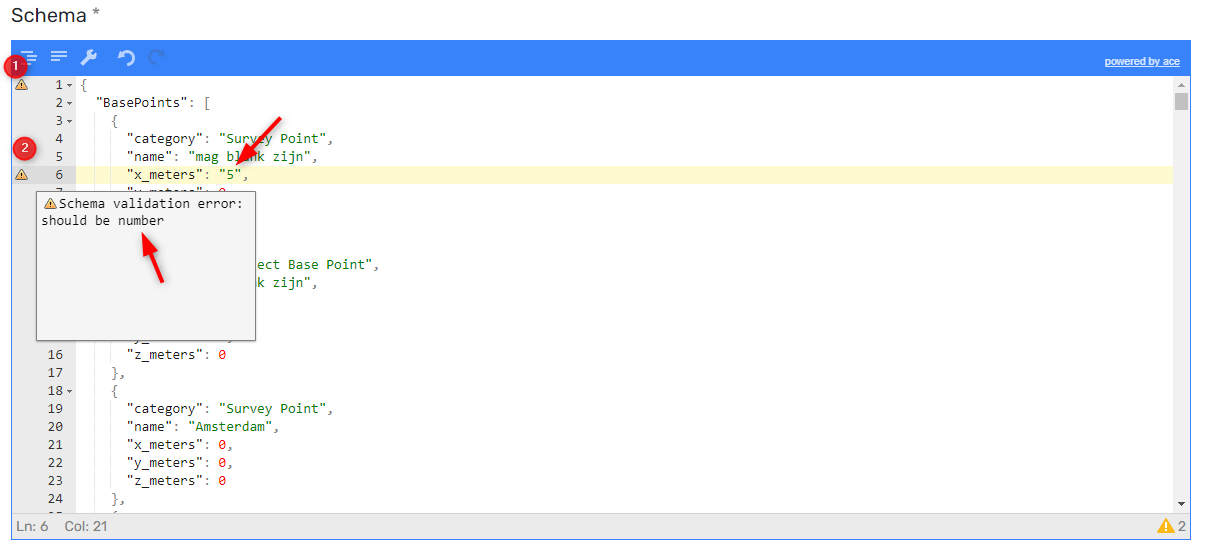
- In the bottom-right corner, you’ll see the total number of errors.
- On the left side, you see the exact line where the problem occurs.
If you see a red box with a white cross, hover over it — the explanation tells you exactly what to fix.
!!! When in doubt, let an AI tool validate your JSON before pasting it into DAQS.