Working with Large Models
Before a model can be validated, DAQS Assist must first extract all required data. The size and complexity of the Revit model directly impact this process: more elements typically result in longer extraction times.
To manage performance, DAQS Assist allows users to control the scope of data extraction.
Configure Extraction Scope
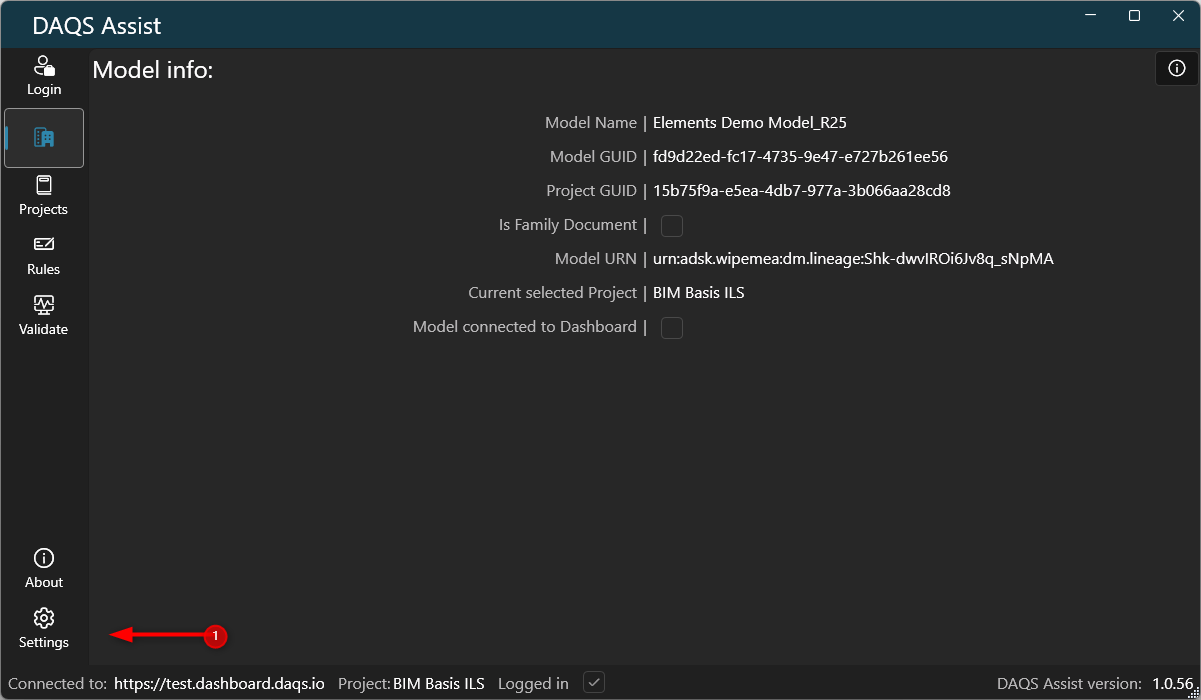
Go to Settings:
Validation Modes
DAQS Assist provides three validation modes, each with a different balance between completeness and performance.
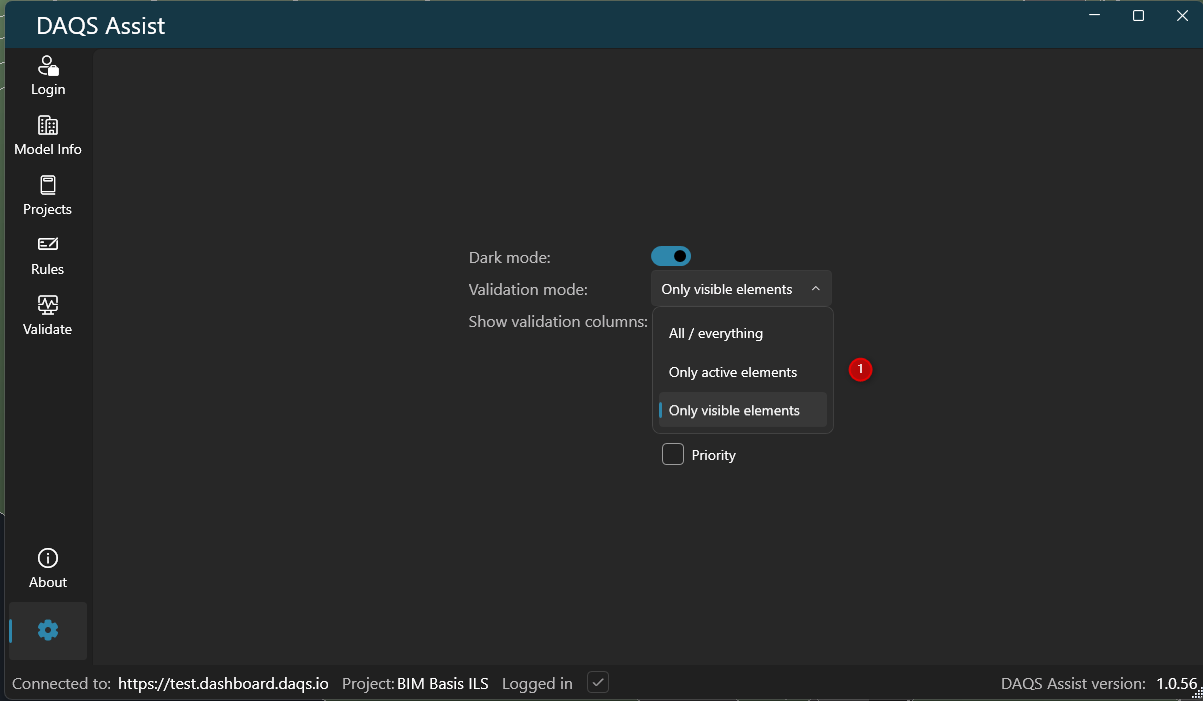
1. All / Everything
All elements in the model are included:
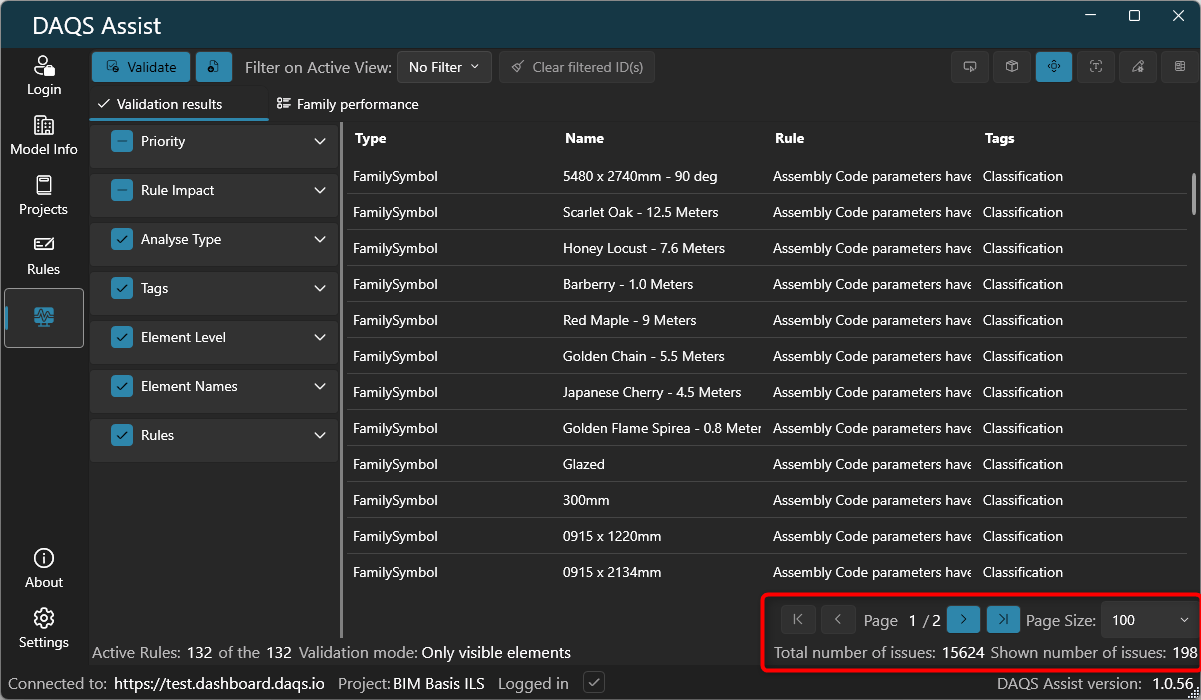
Look at: Total number of issues
- All instances
- All types (including unused types)
Use when:
- Performing a full model validation
- Checking template quality
- Running final QA before delivery
Trade-off:
- Most complete
- Slowest execution time
2. Only Active Elements
Only elements that are actually used in the model are included:
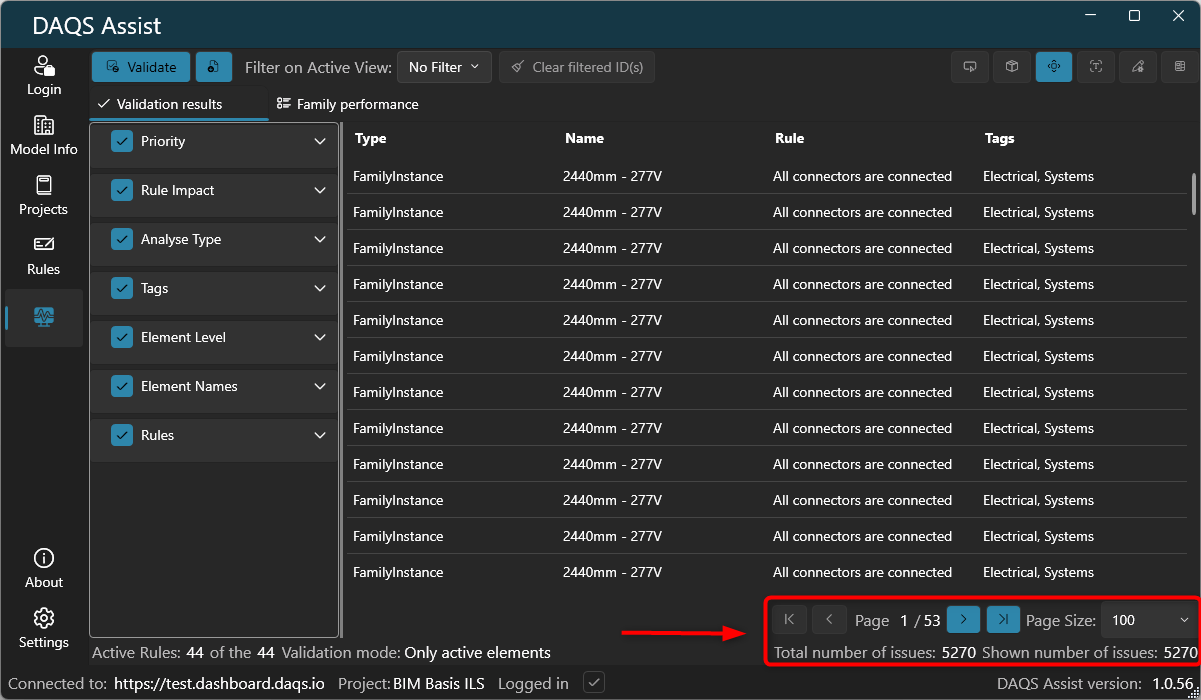
Look at: Total number of issues
- All placed instances
- Only types that have at least one instance
- Unused families and types are excluded
Use when:
- Working with large template-based projects
- You want to avoid validating unused content
Trade-off:
- Faster than full extraction
- Still provides reliable validation for all used elements
3. Only Visible Elements
Extraction is limited to what is visible in the current active view:
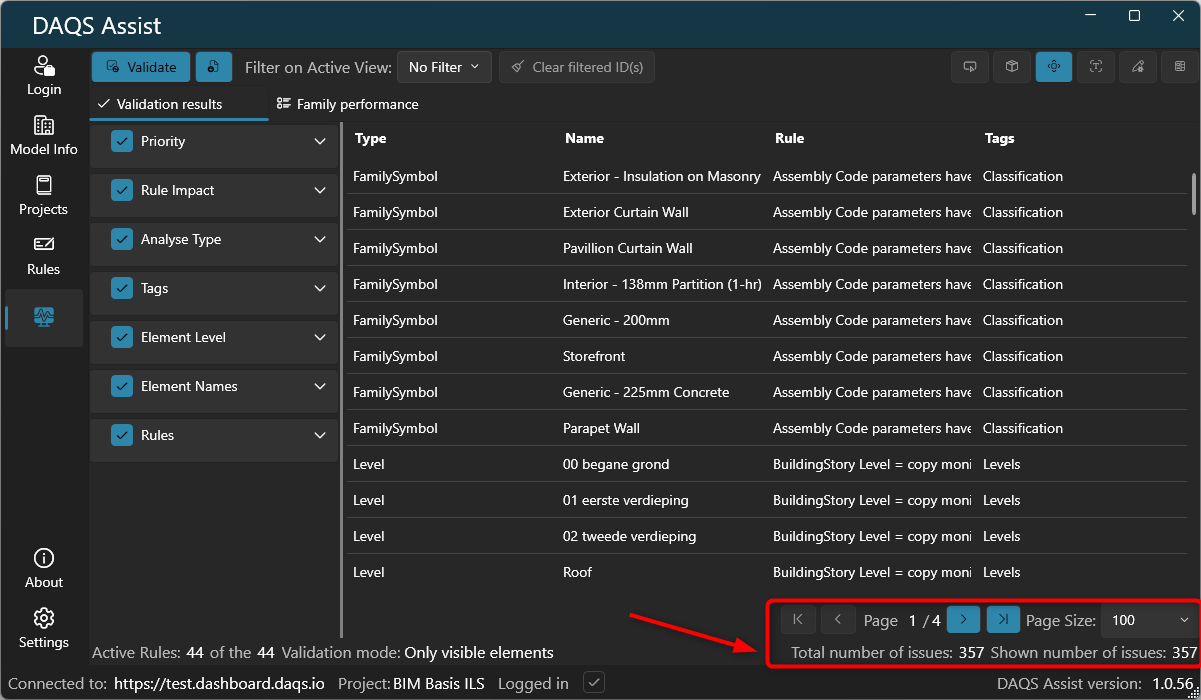
Look at: Total number of issues
- Only visible *instances- are extracted
- All *types- are still fully extracted
Use when:
- Validating a specific part of the model
- Preparing or fixing an IFC export based on a dedicated view
Trade-off:
- Fastest option
- Validation is limited to the visible scope
- Issues outside the view will not be detected
Practical Guidance
- Use *All / Everything- for final validation and quality assurance
- Use *Only Active Elements- during development in large projects
- Use *Only Visible Elements- for targeted workflows (e.g. export views)
Be aware: Reducing the extraction scope improves performance, but it also reduces validation coverage.