Prerequisites
You do not need programming experience to write DAQS rules. You do need a few things in place before you start.
What you need to know
- Basic Revit knowledge — you should know what Families, Types, and Instances are
- Basic JSON — you should be able to read a JSON object like
{ "name": "Door", "id": 12345 }
That is all. JSONata syntax is explained step by step in this course.
Tool: JSONata Exerciser
When writing filters, it helps to test your JSONata expressions before putting them in a rule.
The tool for this is the JSONata Exerciser — an online playground where you paste your JSON data on the left and write a JSONata expression on the right. The result appears instantly.
Open it here: try.jsonata.org

How to use it
- Paste your DAQS JSON export into the left pane
- Type your JSONata filter expression in the top right pane
- Check the result in the output area below
This lets you verify that your filter returns the right shape before writing the full rule.
Tip
Start with a small JSON snippet — not the full model export. A few elements is enough to test your filter logic.
Desktop app
The github repository also has a desktop application. It works the same as the website: try.jsonata.org but faster with larger datasets.
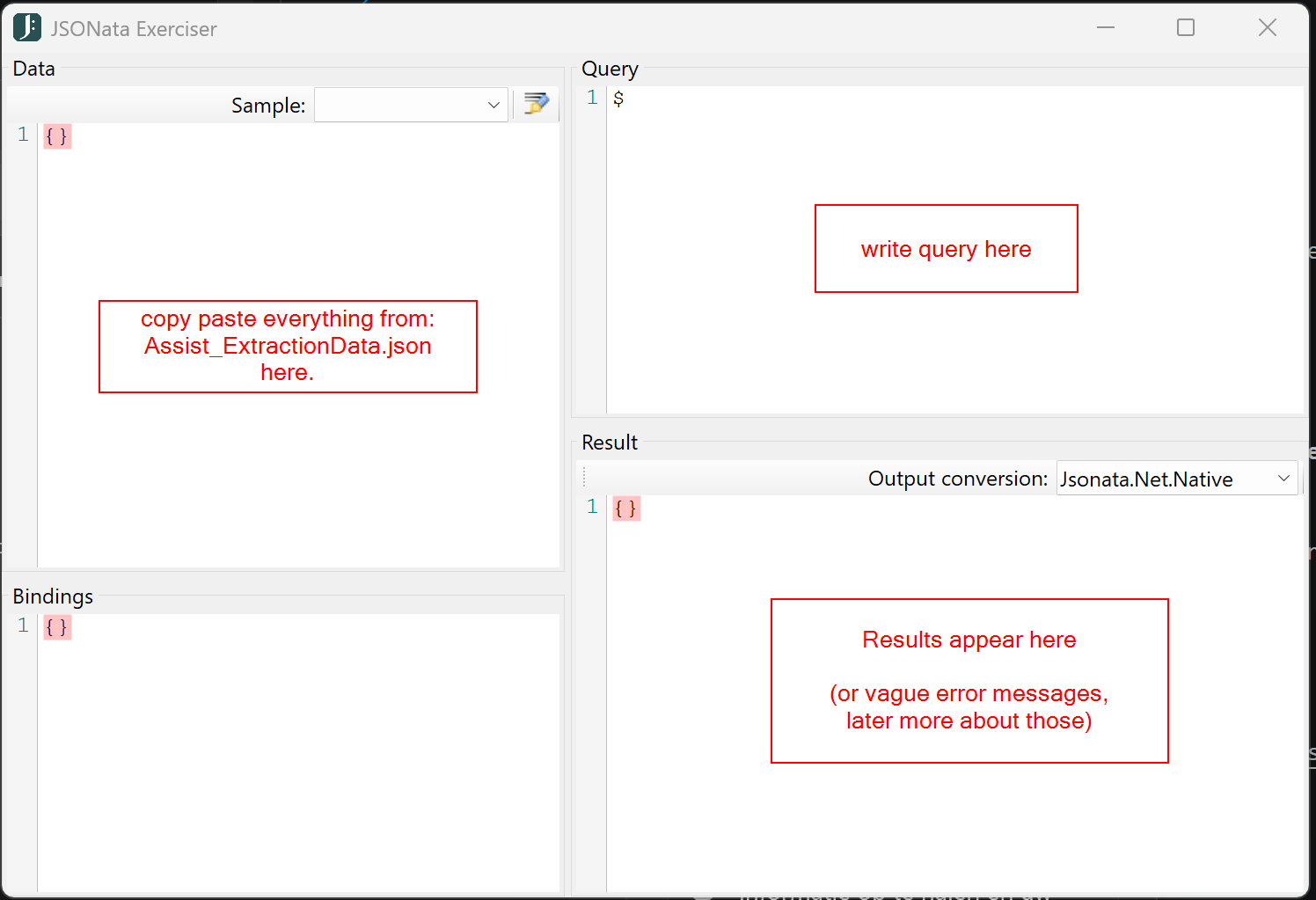
Where to get test data
You need a small piece of DAQS JSON to work with in the exerciser.
The next page — Getting Started — provides a minimal JSON dataset you can use right away.
Once you have a better understanding you may want to get more data to test with:
Plugin location for test data
There are 2 types of installers: SingleUser and MultiUser, which determines where the DAQS Assist plugin is installed:
SingleUser: This installs the plugin in the user's specific directory, by default the%AppData%\Autodesk\Revit\Addins\[REVIT_VERSION]\Daqs.Assist\directory. The plugin will only be available to the user who installed it. Other users on the same machine will not have access to the plugin.MultiUser: This install the plugin in a common directory, by default the%ProgramData%\Autodesk\Revit\Addins\[REVIT_VERSION]\Daqs.Assist\directory. The plugin will be available to all users on the machine. Any user who logs into the machine will have access to the plugin.
AppSettings
You can use the DAQS Assist app to get more data from Revit but you need to tweak a setting to get it.
The file appsettings.json in this directory holds the general config for the DAQS Assist plugin.
For example:
{
  "DaqsAssistDownload": "https://daqs.io/DaqsAssist/Prod/",
  "DaqsBaseUrl": "https://portal.daqs.io",
  "DaqsApiPort": "",
  "DaqsApiBaseLocation": "api",
  "SuppressUpdateVersionNotification": false,
  "SendValidationSummary": true,
  "Serilog": {
    "OutputTemplate": "{Timestamp:yyyy-MM-dd HH:mm:ss} [{Level:u3}] {Message:lj}{NewLine}{Exception}",
    "MinimumLogLevel": "Information",
    "MinimumLogLevelFile": "Information",
    "MinimumLogLevelDebug": "Error"
  },
  "ResultsOutput":{
    "Enabled": false,
    "Directory": "C:\\tmp\\Assist\\Results"
  }
}
Some settings that can be changed are:
SuppressUpdateVersionNotification: this controls if the "There is an update" message be shown or not. Iftruethe message is suppressed and not shown.Serilog.MinimumLogLevelFile: With this you can control the amount / type of log messages are logged. See Different Log Levels in SerilogSendValidationSummary: setting this tofalsedisables the logging of the validation summary.ResultsOutput.EnabledandResultsOutput.Directory: These settings allow the Assist to write debug data. WhenResultsOutput.Enabledis set totrue, the Assist stores several.jsonfiles in the specified directory. This data can be used to debug issues with your model. We may request that you send us these files when needed (note that this data is not automatically sent to us). By default no data is written, since theResultsOutput.Enabledis set tofalse. The data files generated are:Assist_AllData.json: Contains all the data of the model and validations (this file can be quite large).Assist_MetaData.json: Contains the data needed for reporting.Assist_ExtractionData.json: Holds data about the data extraction of the model.Assist_ValidationsData.json: Holds data about the data validations.
Note
The data stored in the ResultsOutput.Directory will be overwritten every time an analysis is ran and when a report is generated.
What you do not need
- Revit API knowledge
- Programming experience